ip
Buu User Guide
Buu is a command-line application for managing tasks, inspired by the Dragon Ball character Buu. It offers an interactive and fun way to manage to-do lists, deadlines, events, and priorities while giving playful feedback. If you enjoy the command line and want a lighter approach to task management, Buu will help you stay productive.
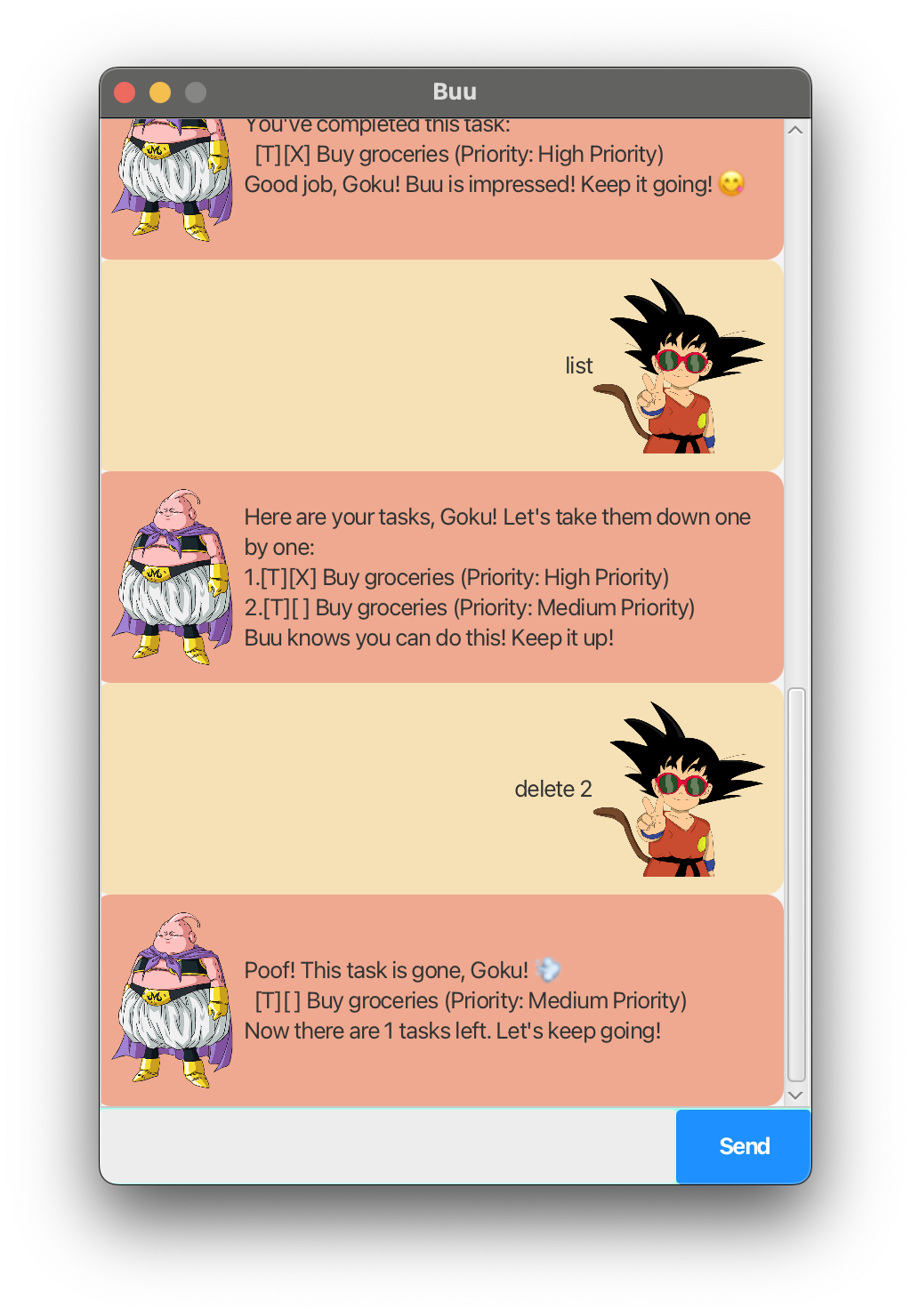
Quick start
-
Ensure you have Java
11or above installed in your Computer. -
Download the latest
.jarfile from here. -
Copy the file to the folder you want to use as the home folder for your Buu Task Manager.
-
Open a command terminal,
cdinto the folder where you put the jar file, and use thejava -jar Buu.jarcommand to run the application.
A command-line interface will appear. You can start interacting with Buu and managing your tasks right away. -
Type the command in the terminal and press Enter to execute it. e.g. typing
helpand pressing Enter will show available commands.
Some example commands you can try:-
list: Lists all tasks. -
todo read book: Adds a task namedread bookto the task list. -
delete 2: Deletes the 2nd task shown in the current list. -
bye: Exits the app.
-
-
Refer to the Features below for details of each command.
Features
Viewing help: help
Shows a list of all commands and their descriptions.
Format: help
Adding a To-Do Task: todo
Adds a to-do task to your task list.
Format: todo TASK
Examples:
todo read booktodo finish homework
Adding a Deadline: deadline
Adds a task with a specific deadline.
Format: deadline TASK /by YYYY-MM-DD HH:MM
Examples:
deadline submit assignment /by 2024-09-30 23:59deadline finish project /by 2024-10-01 18:00
Adding an Event: event
Adds an event task with a start and end time.
Format: event TASK /from YYYY-MM-DD HH:MM /to YYYY-MM-DD HH:MM
Examples:
event project meeting /from 2024-09-25 10:00 /to 2024-09-25 12:00event workshop /from 2024-10-05 09:00 /to 2024-10-05 16:00
Listing all tasks: list
Lists all tasks in your task list.
Format: list
Marking a task as done: mark
Marks a task as completed.
Format: mark INDEX
Examples:
mark 1marks the first task as done.mark 3marks the third task as done.
Unmarking a task: unmark
Marks a task as not completed.
Format: unmark INDEX
Examples:
unmark 2marks the second task as not done.unmark 1marks the first task as not done.
Deleting a task: delete
Deletes a task from the task list.
Format: delete INDEX
Examples:
delete 1deletes the first task.delete 3deletes the third task.
Finding tasks by keyword: find
Finds tasks that contain the given keyword.
Format: find KEYWORD
Examples:
-
find bookreturns tasks withbookin their descriptions.
Setting task priority: priority
Sets the priority of a task to Low, Medium, or High.
Format: priority INDEX PRIORITY_LEVEL
1: Low Priority2: Medium Priority3: High Priority
Examples:
priority 1 3sets the first task to High priority.priority 2 1sets the second task to Low priority.
Exiting the program: bye
Exits the task manager.
Format: bye
Saving the data
Task data is saved automatically after every command that modifies the data. There is no need to save manually.
Editing the data file
Task data is saved as a text file [JAR file location]/data/tasks.txt. You can edit it manually if you’re an advanced user, but make sure to follow the correct format.
FAQ
Q: How do I transfer my data to another computer?
A: Install the app in the other computer and transfer the tasks.txt file to the new installation’s data folder.
Command summary
| Action | Format, Examples |
|---|---|
| Add To-Do | todo TASK e.g., todo read book |
| Add Deadline | deadline TASK /by DATE_TIME e.g., deadline submit assignment /by 2024-09-30 23:59 |
| Add Event | event TASK /from START_TIME /to END_TIME e.g., event project meeting /from 2024-09-25 10:00 /to 2024-09-25 12:00 |
| List All Tasks | list |
| Mark Task as Done | mark INDEX e.g., mark 1 |
| Unmark Task | unmark INDEX e.g., unmark 2 |
| Delete Task | delete INDEX e.g., delete 3 |
| Find Tasks | find KEYWORD e.g., find book |
| Set Task Priority | priority INDEX PRIORITY_LEVEL e.g., priority 1 3 |
| Exit | bye |
| Help | help |